Quick answer: The GATE virtual calculator is the on-screen, non-programmable scientific calculator inside the GATE exam window, and it is the only calculator you are allowed to use. You operate it with the mouse, and you enter the number first, then press the function key (for example, 30 → log). To use it well: learn the layout, check DEG/RAD mode, use brackets, and practice mouse-only until it feels natural.
Every year, GATE aspirants lose marks not because they don’t know the concept, but because they fumble with the GATE virtual calculator on exam day. The calculator behaves differently from the handheld one you used in school, and a single wrong key order can turn a correct approach into a wrong numerical answer. In this guide, Gate At Zeal Indore explains how to use the GATE virtual calculator step by step, with worked key sequences, common traps, and a 4-week practice plan you can start today.
Also Read: Avoid These 5 Common Mistakes in the GATE Virtual Calculator
Why the GATE Virtual Calculator Matters for GATE 2027
GATE is a computer-based test, and the official GATE 2027 Information Brochure states that candidates must use only the on-screen virtual calculator for their calculations. No physical calculator is permitted in the exam hall.
This matters most for Numerical Answer Type (NAT) questions, which carry 1 or 2 marks each and need a precise number typed in with the on-screen keypad. With GATE 2027 scheduled for 6, 7, 13, 14, 20 and 21 February 2027 and conducted by IIT Madras, the time to build calculator speed is now, not the week before the exam.
What Is the GATE Virtual Calculator?
The GATE virtual calculator is a web-based scientific calculator that appears on your exam screen. Here is what to know before you start practicing:
- Mouse-only input: you click the keys on screen. Typing on the keyboard to enter values should not be part of your plan.
- Non-programmable: it cannot store formulas or programs, so every calculation is entered fresh.
- Scientific functions: logarithms, trigonometric functions, powers, roots and factorials are available.
- Number first, then function: you type the value and then press the function key, which is the opposite of how many pocket calculators work.
The official portal at gate2027.iitm.ac.in hosts the syllabus, previous-year papers, mock links and the virtual calculator, so always treat it as the final reference for the exact interface.
Layout of the GATE Virtual Calculator
Before learning any tricks, get comfortable with where things are. The calculator is divided into clear zones:

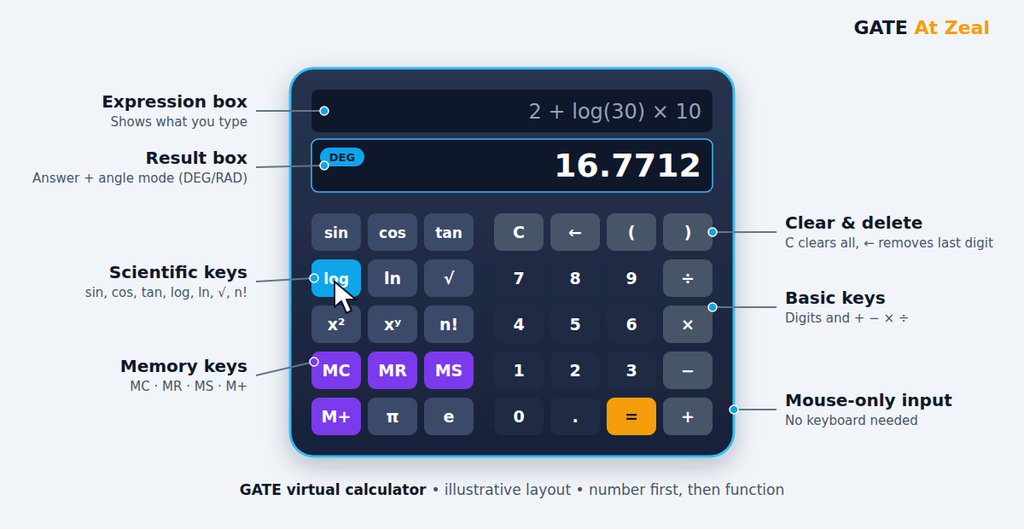
- Two display boxes: one shows the expression you are building, the other shows the result.
- Scientific keys (left): sin, cos, tan, log, ln, square root, powers and factorial.
- Basic keys (right): digits, decimal point, brackets and the four operators.
- Memory keys: store and recall a value during a long calculation.
- No SHIFT or INV key: inverse functions have their own dedicated buttons.
Note: the image above is an illustrative layout. Key positions and labels can change between years, so confirm them on the official mock interface.
How to Use the GATE Virtual Calculator: Step by Step
Step 1: Basic arithmetic and clearing
Use the right-hand keys as usual. Use C to clear everything and the backspace (←) key to delete only the last digit. Clearing the whole expression when you only needed to fix one digit is a classic time-waster.
Step 2: Logarithms (number first, then log)
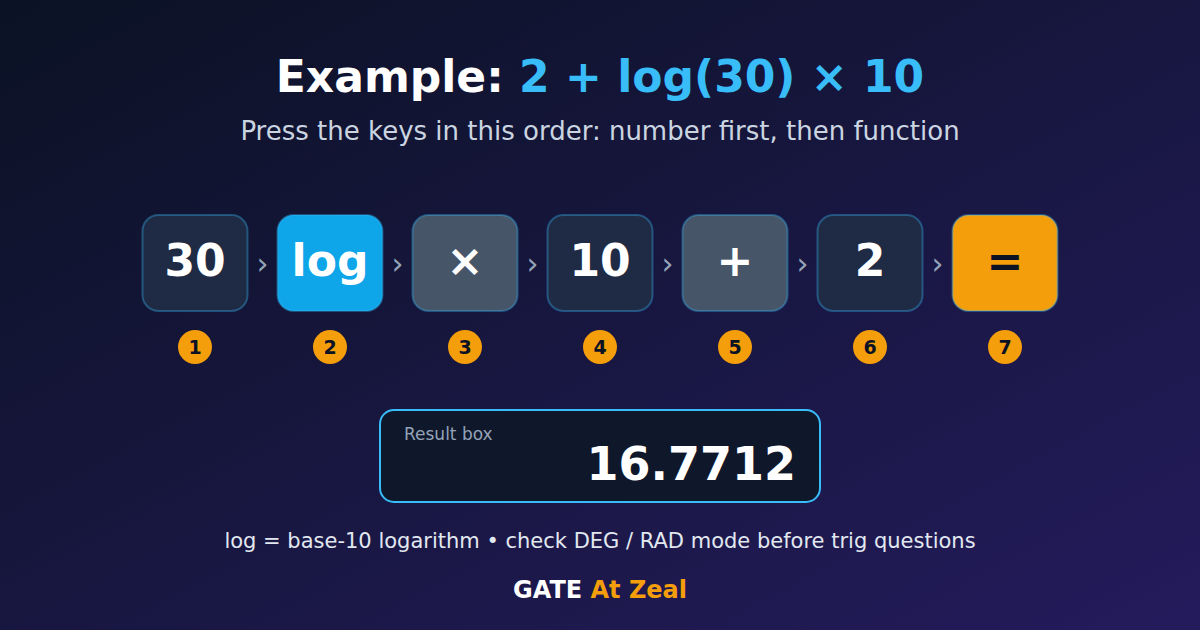
To calculate 2 + log(30) × 10, enter 30, press log, then continue with × 10 + 2 =. Check whether the question needs log (base 10) or ln (natural log), because they give very different answers.

Step 3: Trigonometric functions and DEG/RAD mode
For sin, cos and tan, enter the angle first, then press the function key. Always check the angle mode before you press anything. A question that gives angles in degrees needs DEG mode, and one that uses π or radians needs RAD mode. Getting this wrong is one of the most common calculator errors, and the result will look perfectly reasonable, which makes it hard to catch.
Step 4: Powers, roots and factorials
Single-input functions such as square root, square and factorial follow the same rule: type the number, then press the function. For example, 6 → n! gives 720. For expressions like xy, enter the base, press the power key, then enter the exponent.
Step 5: Brackets for long expressions
Whenever a numerator or denominator has more than one term, put it inside brackets. Without brackets, the calculator follows operator precedence, which may not match what you meant.
Step 6: Memory keys for multi-step problems
Use MS to store a value, MR to recall it, M+ to add the displayed value to memory and MC to clear memory. Storing an intermediate result is faster and safer than copying it onto your rough sheet and retyping it.
Worked Examples: Key Sequences You Can Practice Today
Try these on a virtual calculator and compare your result. The key labels may differ slightly on the official interface, but the order of thinking stays the same.
| Expression | Key sequence | Result |
|---|---|---|
| 2 + log(30) × 10 | 30 → log → × → 10 → + → 2 → = | 16.7712 |
| sin(30°) × 8 + 2 (DEG mode) | 30 → sin → × → 8 → + → 2 → = | 6 |
| 10C3 = 10! ÷ (3! × 7!) | 10 → n! → ÷ → ( → 3 → n! → × → 7 → n! → ) → = | 120 |
| 100 ÷ (4 × 5) | 100 → ÷ → ( → 4 → × → 5 → ) → = | 5 |
Notice what happens in the second example if you forget the mode: in RAD mode the same keys give about −5.90 instead of 6. That is how a single unchecked setting costs you the full mark on a NAT question.
8 Practice Tips to Master the GATE Virtual Calculator
Knowing the keys is only half the job. Speed and accuracy come from deliberate practice. These are the habits we recommend at Gate At Zeal Indore.
- Stop using a physical calculator completely. If you train on a handheld device, your fingers learn the wrong input order. Switch to a virtual calculator from the first day of problem-solving.
- Practice with a mouse, not a touchpad. The real exam uses a mouse, and mouse clicking speed is a skill in itself.
- Practice typing NAT answers on the on-screen keypad. The official brochure says NAT answers must be keyed in with the virtual keypad, so rehearse entering negative signs and decimals.
- Use brackets by default. Put multi-term numerators and denominators in brackets until it becomes automatic.
- Make a DEG/RAD check part of every trigonometry question. Treat it like checking units in physics.
- Keep full precision until the last step. Rounding early is a hidden source of wrong NAT answers. Round only the final result.
- Decide when not to use it. Powers of 2, simple fractions and quick estimates are often faster in your head. Save the calculator for logs, trigonometry, long multiplications and decimals.
- Keep a calculator error log. Write down every mistake caused by wrong key order, wrong mode or a sim-click. After a week, the pattern will be obvious. The method in our data-driven guide to evaluating your GATE progress works well for this.
A 4-Week GATE Virtual Calculator Practice Plan
| Week | Focus | What to do daily |
|---|---|---|
| Week 1 | Layout and basics | Solve 15–20 arithmetic expressions with the mouse only; learn where every key is. |
| Week 2 | Scientific functions | Drill log, ln, trigonometry, powers and factorials; check DEG/RAD every time. |
| Week 3 | Real questions | Solve NAT questions from previous year papers using only the virtual calculator and note your time per question. |
| Week 4 onward | Exam conditions | Take timed mocks, review your error log after each test, and repeat weak areas. |
Also Read: Ultimate GATE Calculator Tricks by Gate At Zeal
Where to Practice the GATE Online Calculator
- The official GATE mock test: the organizing IIT provides a mock interface that includes the calculator. See our walkthrough of how the official GATE mock test link works, and check the official GATE 2027 website for the current mock link.
- A test series with an exam-like interface: practicing inside a realistic test environment builds both calculator speed and time management. Read how online mock tests can improve your GATE rank and how to follow a GATE test series to get more from every test.
- Full-length mocks: they train your stamina and calculator discipline together. Here is why full-length mocks are the best way to simulate the real GATE exam.
Planning your schedule? See when to start your GATE 2027 test series and what to look for in the best test series for GATE CSE.
Common GATE Virtual Calculator Mistakes to Avoid
- Pressing the function key before entering the number
- Forgetting to check DEG/RAD mode
- Skipping brackets in long expressions
- Confusing log (base 10) with ln (natural log)
- Rounding too early in multi-step calculations
- Using the calculator for questions that are faster by hand
These are part of a bigger pattern of avoidable mistakes students make in GATE preparation. For more on boosting accuracy through mocks, read how to boost your accuracy with GATE mock tests.
Frequently Asked Questions About the GATE Virtual Calculator
Can I use a physical calculator in the GATE exam?
No. Only the on-screen virtual calculator provided in the exam interface is allowed.
Is the GATE virtual calculator scientific?
Yes. It is a non-programmable scientific calculator with logarithmic, trigonometric, power, root and factorial functions.
Can I use the keyboard with the GATE virtual calculator?
You should plan to use the mouse only. Practice clicking keys on screen so there are no surprises on exam day.
How do I calculate trigonometric values on the GATE calculator?
Enter the angle first, then press sin, cos or tan. Check that the calculator is in the correct DEG or RAD mode before you begin.
Where can I practice with the GATE virtual calculator?
Use the official mock test on the GATE 2027 website once it is live, and take mock tests from a test series that replicates the exam interface.
How long does it take to get comfortable with the GATE virtual calculator?
It varies from student to student, but most people feel comfortable within a few weeks of daily practice, especially if they solve real NAT questions and review their calculator mistakes.
Conclusion
The GATE virtual calculator is simple, but only if you have practiced with it. Learn the layout, remember “number first, then function”, use brackets, check DEG/RAD mode, and train with a mouse in timed mocks. A few seconds saved on every calculation can turn into several extra marks, and sometimes a noticeably better rank.
Preparing for the revised exam? Start with our complete GATE 2027 study plan for the revised syllabus, and see what score you should aim for in GATE cutoff trends for IITs and PSUs in 2027. You can also browse more articles in our GATE CS Preparation category.
Ready to practice in a real exam environment? Join Gate At Zeal Indore and train with exam-style mocks, detailed analysis and expert mentoring for GATE 2027.